Understanding WinRM: The SSH Equivalent for Windows Servers
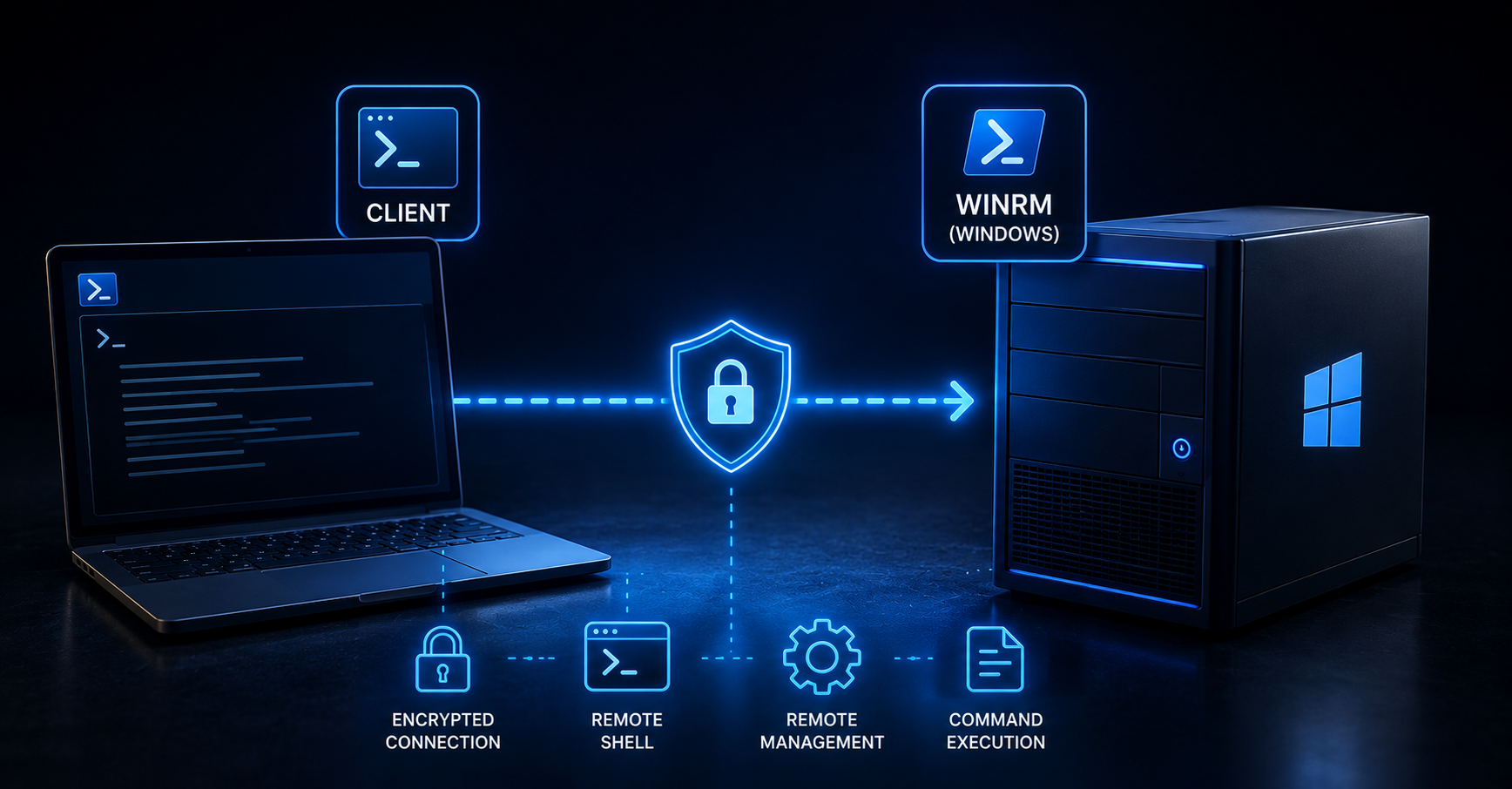
Windows Remote Management (WinRM) is the Windows equivalent of SSH for Linux systems. It's a powerful tool that allows users to connect to and manage Windows servers remotely.
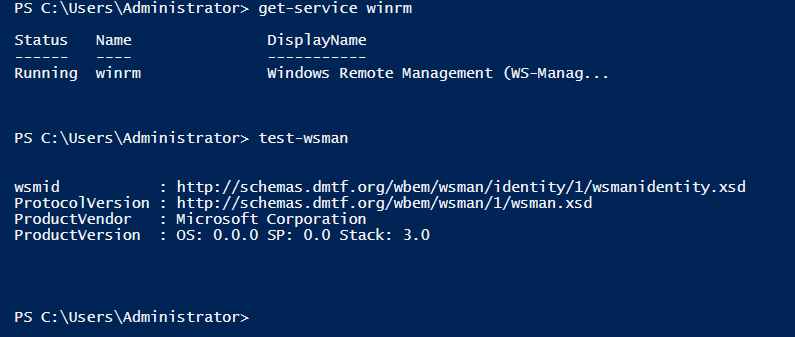
To check if WinRM is working on the server we want to connect, these PowerShell commands can be run on it to check whether it is ready to accept WinRM connections.
Get-Service WinRM (Shows if WinRM is running)
Test-WSMan (Tests if WinRM is set up correctly)\
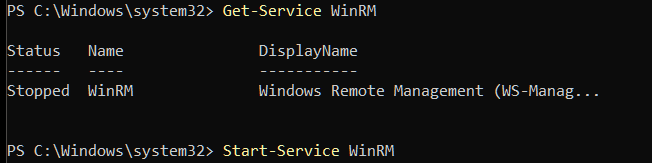
Then we have to add the server to the TrustedHosts list on our local machine. But before that we have to make sure that WinRM service is running on our machine or not, for that use command “Get-Service WinRM” to know whether it is running or not, and if not running, start it with Start-Service WinRM:
Coming back to adding server to the TrustedHosts list, we need to do it on our own computer, not on the server we're trying to connect to. This is done for security reasons. Even though commands are executed on the remote server, connecting to untrusted servers can pose risks like information leakage for our computer too. To add a server, open PowerShell as an admin on our computer and run:
Set-Item WSMan:\localhost\Client\TrustedHosts -Value "server_name_or_ip" -Force
We can also use the server's IP address instead of its name. For multiple servers, * can be used, but this is less secure.
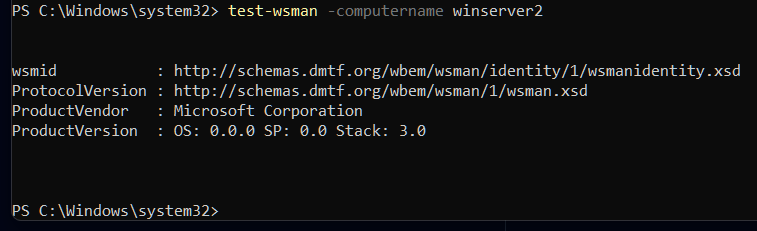
To check if WinRM is running and accessible from our local machine, use the following command:
Test-WsMan -ComputerName "server_name_or_ip"
To connect to the server, use this PowerShell command as admin:
Enter-PSSession -ComputerName server_name_or_ip -Credential (Get-Credential)
We can use either sever name or IP. Using (Get-Credential) prompts for username and password in a pop-up window. Not running this command in admin powershell may cause errors to come up.

For testing connection using Python, here's a simple script to connect:
import winrm # get it with,win: pip install pywinrm,linux: python3 -m pip install pywinrm
# use only ip address in linux, in windows both ip and hostname will work
session = winrm.Session('winserver2', auth=('username', 'password_for_that_user'), transport='ntlm')
result = session.run_cmd('hostname') # hostname is just a sample test command
print(result.std_out.decode().strip())

To test WinRM connection from Ubuntu Linux, these commands work:
sudo apt update
sudo apt install ruby-full
sudo gem install evil-winrm
evil-winrm -i ip_addr_of_server -u username -p password_for_that_user
While making connection from linux, either using python or bash, for some reason using server name instead of IP address was giving error “Name or service nto known”. That is why we had to use only IP address from linux to connect (tested on Ubuntu and Red Hat).
On Windows Server 2019, WinRM is already running by default after installation. This means if someone knows the IP address, username, and password, they can potentially connect right away using WinRM.


