Setting Up Remote Desktop on Windows 11 Without a Password
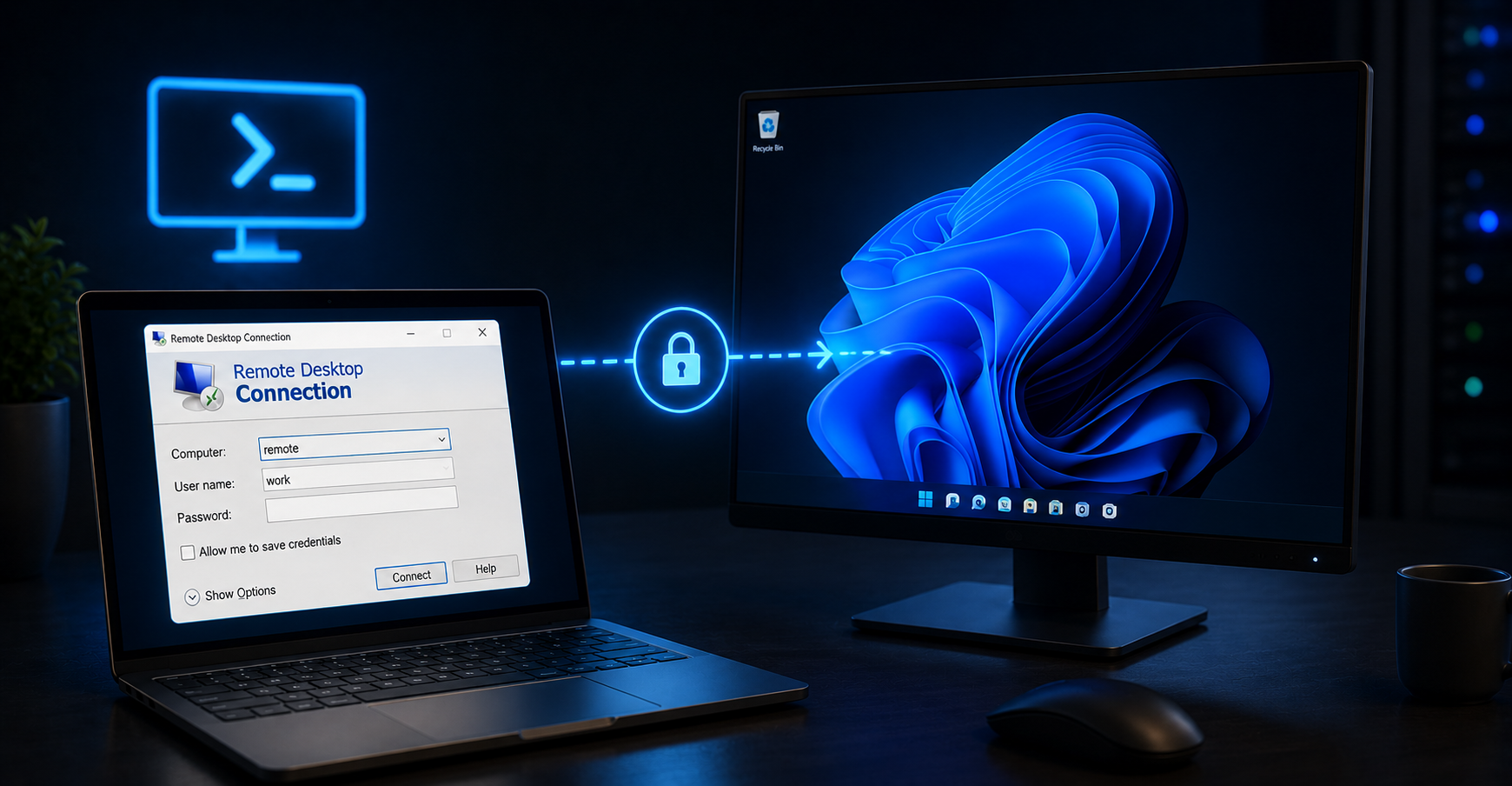
This setup is primarily useful for test environments or virtual machines where quick access is prioritized over security.
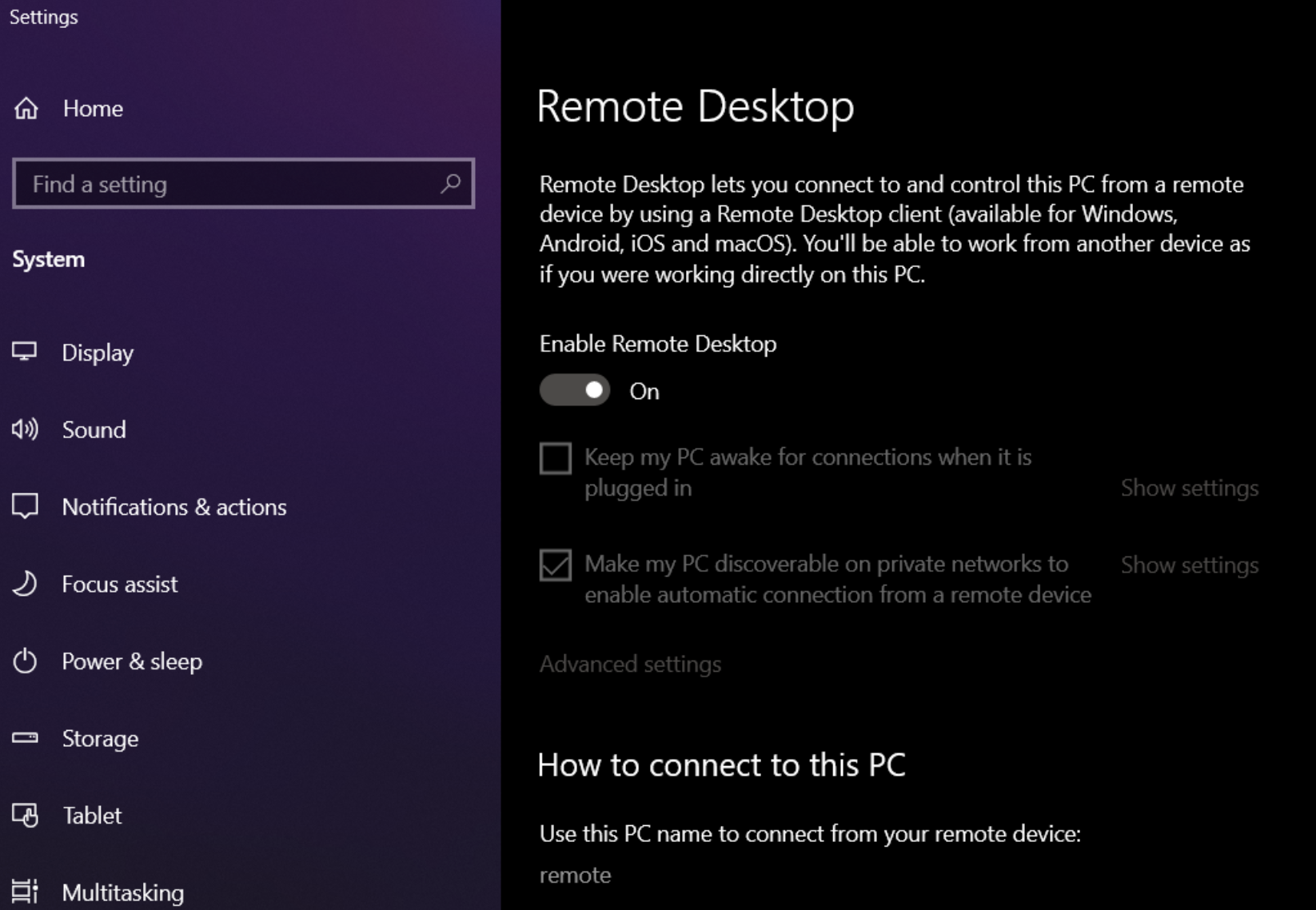
Enable Remote Desktop:
Right-click Start button, select "System"
Scroll to "Remote Desktop"
Toggle "Remote Desktop" to On
Allow Blank Password Login:
Press Windows key + R
Type "regedit", hit Enter
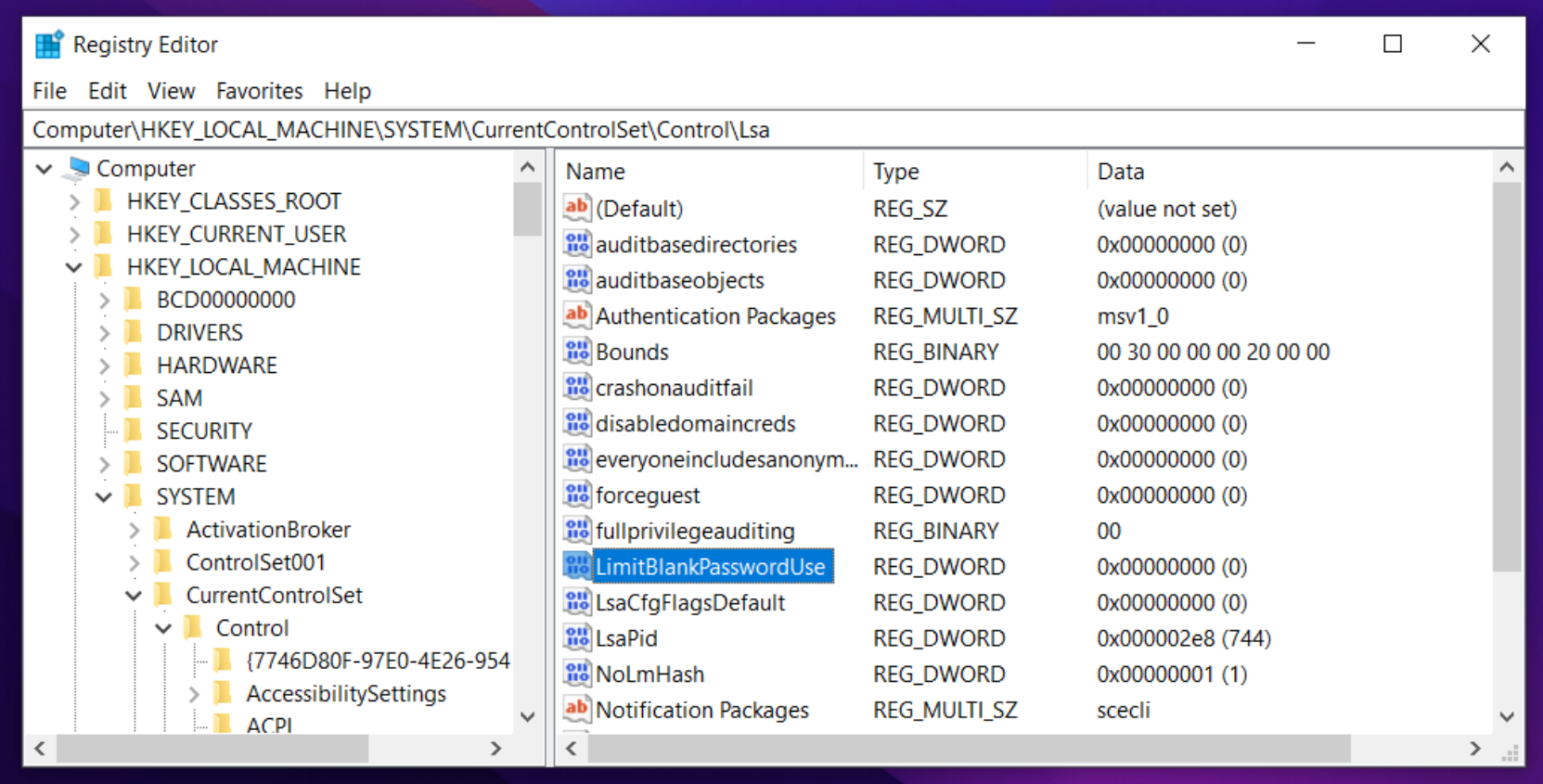
Navigate to: HKEY_LOCAL_MACHINE\SYSTEM\CurrentControlSet\Control\Lsa
Find or create "LimitBlankPasswordUse" (DWORD 32-bit Value)
Set its value to 0
Find Computer Info:
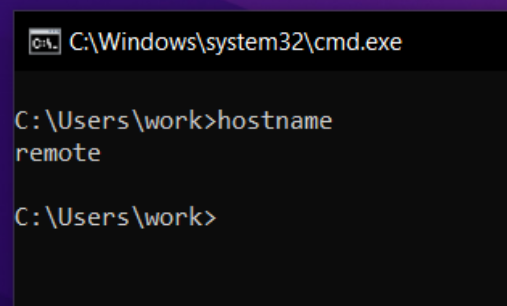
Open Command Prompt
For IP address: Type "ipconfig", press Enter
For computer name: Type "hostname", press Enter
Connecting from Another Computer:
Open Remote Desktop Connection
Enter IP address or computer name (for this demo "remote")
Click Connect
Enter username (for this demo "work"), leave password blank


